Control Center Release in SAP Business One
This WEVY NOTE provides guidance for releasing the SAP Business One Control Center via the RUN platform.
1. Definition
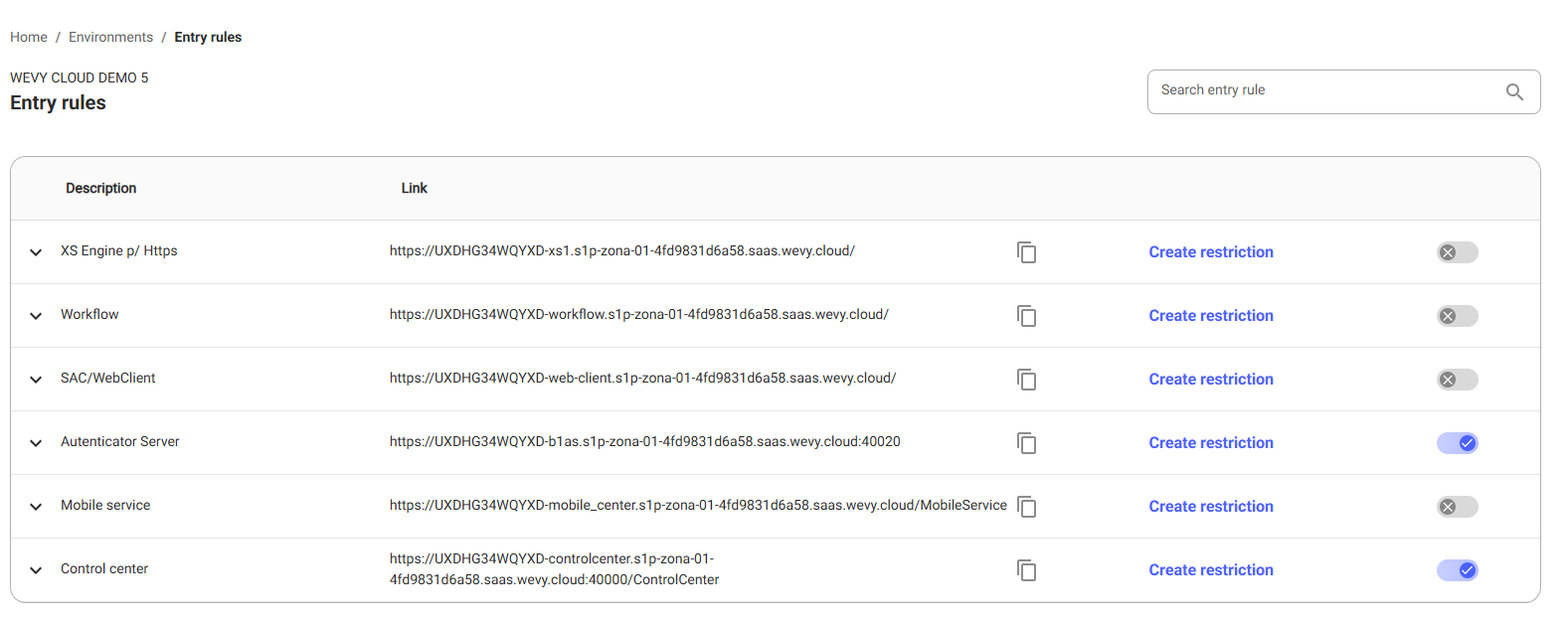
The first step is to authenticate on the platform. In the environment row, click on the three dots and select inbound rules. For more details, access the documentation below:
-
View documentation:
Click here ➡️ Entry Rules -
On the inbound rules screen, select the rules for both the authenticator and control center. One depends on the other for proper functioning.
2. Accessing the Control Center
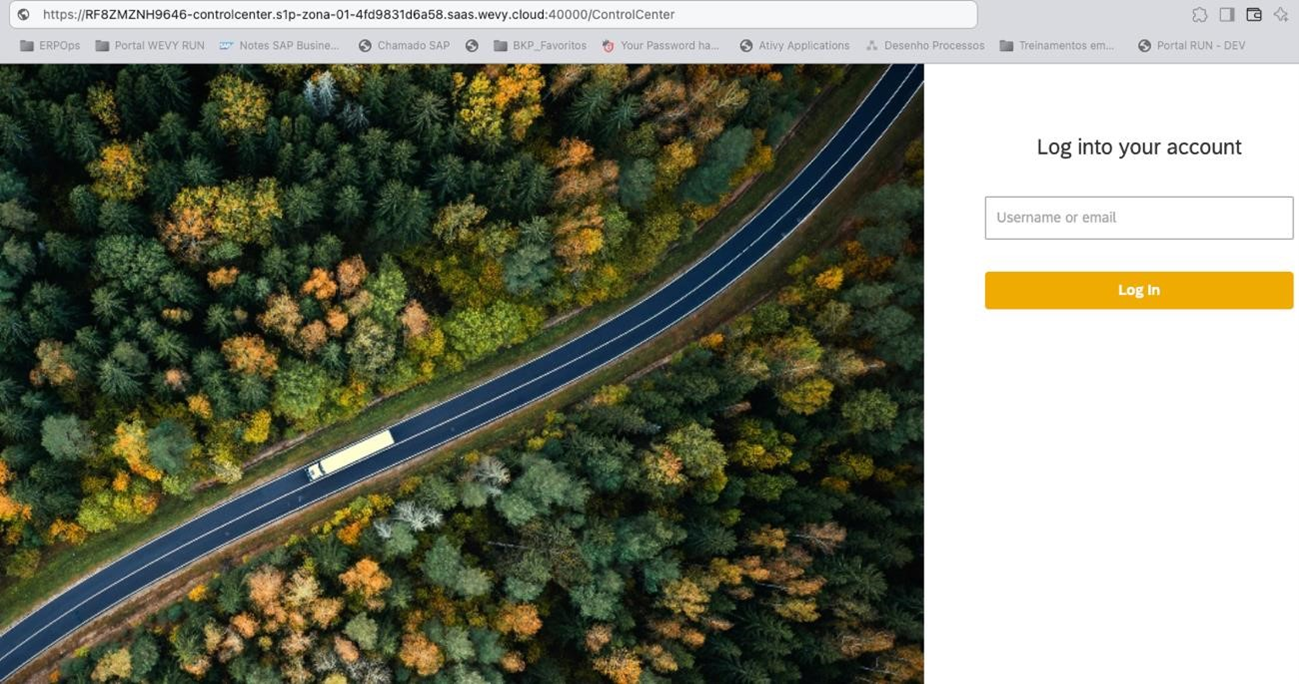
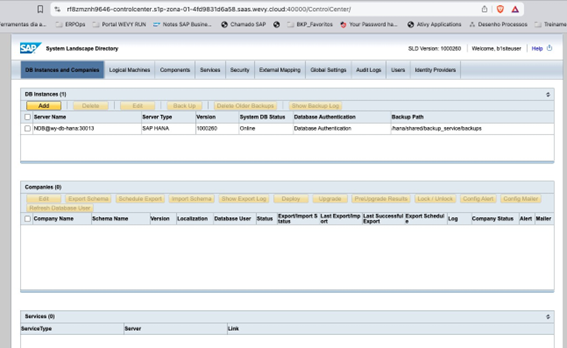
After receiving the release message, access the Control Center using the B1SiteUser password shared during the environment release.
3. URL Configuration
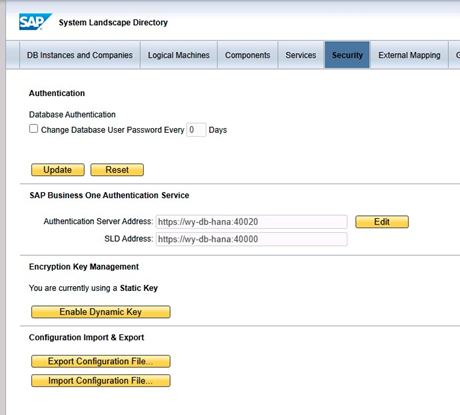
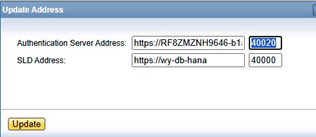
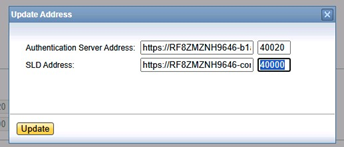
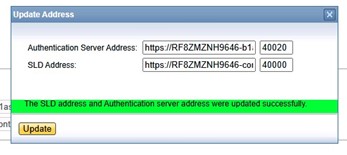
In the Security section, configure the external access URLs for B1AS and Control Center.
For more details, refer to the SAP documentation.
3.1. B1AS URL
https://RF8ZMZNH9646-b1as.s1p-zona-01-4fd9831d6a58.saas.wevy.cloud/
Remove the
/before placing it in the configuration field.
3.2. Control Center URL
https://RF8ZMZNH9646-controlcenter.s1p-zona-01-4fd9831d6a58.saas.wevy.cloud/ControlCenter
Remove
ControlCenter.
4. Restart
- Restart Control Center and B1AS – standard SAP procedure.

- Access Control Center again through the template machines.
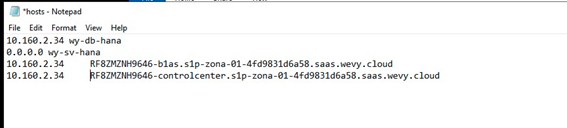
Once the Control Center is enabled for external access, you must configure the hosts file on the template machine to map the external URL to the database IP.
5. Configure Hosts
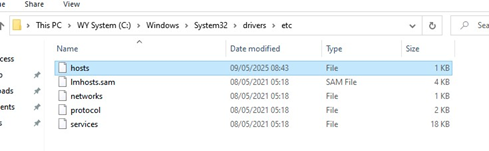
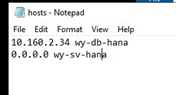
- This is the standard structure of the machine’s
hostsfile. Now just insert the external URLs pointing to the internal IP as shown below.
6. Accessing Externally
https://RF8ZMZNH9646-controlcenter.s1p-zona-01-4fd9831d6a58.saas.wevy.cloud:40000/ControlCenter